
Choosing the Right File Type for Printing : Photoshop, Illustrator dan CorelDraw
One important part of preparing artwork for printing is choosing the correct file type and design workflow.
Many customers assume that all design files will produce the same print quality as long as the artwork looks good on a computer screen.
In reality, different design applications work in different ways, and different printing products require different types of artwork.
A file that is ideal for printing photography may not be the best choice for a book containing large amounts of small text. Likewise, vector artwork that is excellent for logos and typography is not intended to replace high-resolution photography.
Before sending artwork to a printing company, it is therefore important to understand the difference between raster images, vector artwork, and PDF files that can contain both.
1. Not All Print Files Work the Same Way
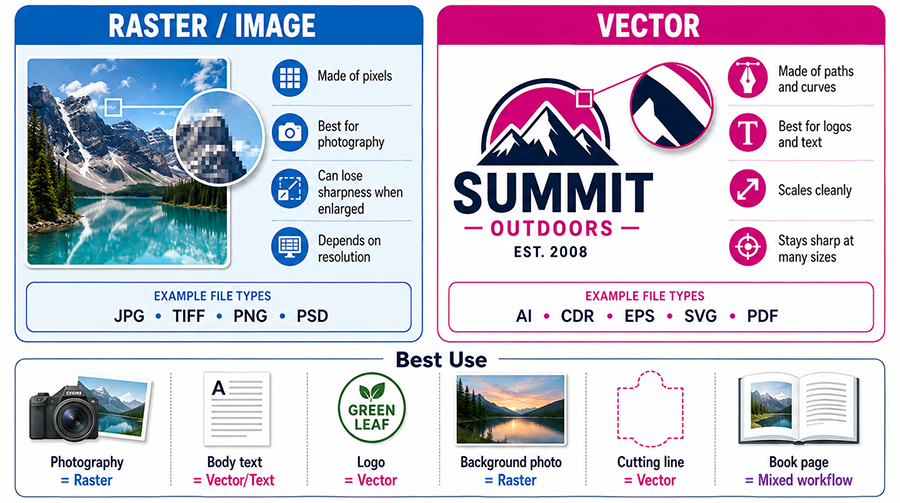
Digital artwork for printing generally contains two main types of graphic data:
- Raster or Bitmap — images made from pixels.
- Vector — graphics created from lines, curves, shapes, and mathematical paths.
There are also formats such as PDF that can contain a combination of vector graphics, text, and raster images in a single document.
Understanding these differences is important because final print quality depends not only on the printer, but also on the quality and structure of the file supplied for production.
2. What Is a Raster or Bitmap File?
A raster image is made from a fixed number of pixels.
Common raster formats include:
- JPEG / JPG
- TIFF
- PNG
- PSD
- WebP
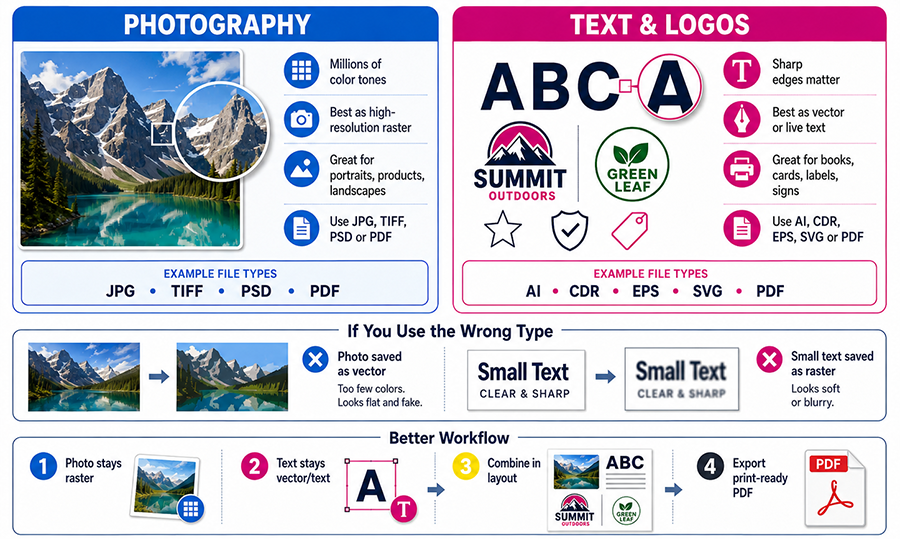
Photography is an excellent example of content that is naturally suited to raster images because photographs contain millions of color variations, gradients, textures, highlights, shadows, and fine details.
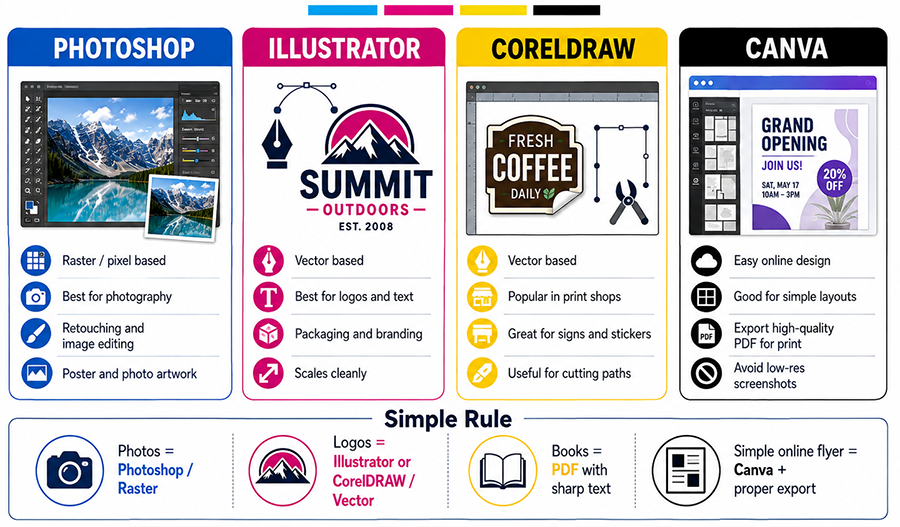
3. Photoshop Is Primarily Raster-Based
Adobe Photoshop is a powerful application designed primarily for pixel-based or raster artwork.
Photoshop is particularly suitable for:
- Photography editing.
- Photo retouching.
- Color correction.
- Image manipulation.
- Photo-based posters.
- Photo printing.
- Digital imaging.
- Artwork containing complex textures and effects.
If the main purpose of the artwork is to print a photograph, Photoshop can be an excellent choice.
A properly prepared photograph with sufficient pixel dimensions and effective resolution can produce excellent print detail.
4. Raster Is Not Always Ideal for Text-Heavy Documents
Problems can occur when an entire design containing large amounts of text is flattened into one raster image.
Examples include:
- Books.
- Magazines.
- Company profiles.
- Catalogues.
- Menus with a large amount of text.
- Product manuals.
- Brochures containing small text.
- Price lists.
- Forms.
If an entire page is converted into a JPG or another raster image, all of the text also becomes pixel-based.
At insufficient resolution, letters that should have very sharp edges may appear slightly soft or pixelated when printed.
5. Why Is Vector Better for Text and Logos?
Vector graphics are not based on a fixed grid of pixels.
Lines, letters, curves, and shapes are described mathematically.
This means vector artwork can usually be enlarged or reduced without developing the pixelation associated with raster images.
This characteristic makes vector artwork especially useful for:
- Logos.
- Text.
- Line art.
- Diagrams.
- Icons.
- Shapes.
- Illustrations.
- Patterns.
- Technical drawings.
6. Illustrator Is Well Suited to Vector Printing
Adobe Illustrator is a vector-based design application widely used in professional graphic design and printing.
Illustrator is particularly suitable for:
- Logos.
- Business cards.
- Stickers.
- Packaging.
- Labels.
- Posters.
- Signage.
- Banners.
- Vector illustration.
- Brand identity.
- Layouts combining images and text.
Text and vector shapes created in Illustrator can remain extremely sharp when printed, provided the file is prepared and exported correctly.
7. CorelDRAW Is Also Widely Used in the Printing Industry
CorelDRAW is another vector-based application that is widely used in printing, signage, sticker cutting, screen printing, engraving, and many other production environments.
The native CorelDRAW format is commonly:
.CDR
Like Illustrator, CorelDRAW is highly suitable for work requiring:
- Sharp text.
- Vector logos.
- Cutting paths.
- Contour cuts.
- Signage layouts.
- Line art.
- Large-format graphic designs.
8. Photoshop vs Illustrator vs CorelDRAW
The basic differences can be summarized as follows:
| Software | Main Characteristic | Best Suited For |
|---|---|---|
| Adobe Photoshop | Raster / Pixel | Photography, retouching, image editing and photo-based artwork |
| Adobe Illustrator | Vector | Logos, text, illustration, packaging, signage and vector artwork |
| CorelDRAW | Vector | Print layouts, signage, cutting, stickers, logos and typography |
| Canva | Online layout combining raster and vector elements | Social media graphics, simple posters, invitations, flyers, presentations and general design |
9. What About Canva?
Canva is popular because it allows users to create designs quickly without learning complex professional design software.
Canva can be used for many printing projects, including:
- Flyers.
- Invitations.
- Posters.
- Menus.
- Business cards.
- Simple brochures.
- Digital artwork that will later be printed.
However, the quality of the final file depends heavily on how the design was created and how it was exported.
If artwork is exported as a JPG and later enlarged significantly for printing, image quality may decrease.
For print production, a high-quality PDF is generally a better choice than sending a screenshot or a low-resolution JPG.
10. The Software Name Does Not Automatically Determine Quality
It is important to understand that the application used to create the design does not automatically determine whether the file is good or bad.
For example, an Illustrator file can still produce poor print quality if it contains a very low-resolution photograph.
Likewise, a Photoshop file can produce outstanding photography when the resolution and color-management workflow are prepared correctly.
The important questions are:
- Is the artwork raster or vector?
- What is the image resolution?
- What is the final printing size?
- Does the text remain as text or vector?
- How was the file exported?
- Is the correct color profile being used?
- Has the image been enlarged beyond its practical resolution?
11. Why Is JPG Not Always Ideal for Books?
JPG is extremely useful and convenient, but it is not the best format for every print job.
Imagine a book page containing several paragraphs of small body text.
If the entire page is converted into one JPG image, all of the text becomes pixel-based.
The sharpness of the letters will then depend on the resolution and compression quality of that JPG.
If the resolution is too low or the image has been highly compressed, the edges around letters may appear less sharp.
For book layouts, it is generally better to keep typography as text or vector content inside the final PDF whenever the workflow allows it.
12. PDF Can Contain Both Vector and Raster Content
A common misunderstanding is that every PDF is automatically vector.
This is not true.
A PDF can contain:
- Vector text.
- Vector logos.
- Vector shapes.
- Raster photographs.
- Raster effects.
- A combination of all of the above.
This is one reason PDF is widely used in professional print workflows.
For example, in a product catalogue, photographs can remain high-resolution raster images while text and logos remain vector-based.
13. Ideal Example: A Book with Photos and Large Amounts of Text
Imagine a book containing:
- Photographs.
- Headings.
- Body text.
- Page numbers.
- Logos.
- Diagrams.
A good file structure does not have to choose between raster and vector exclusively.
Photographs can remain as high-resolution raster images.
At the same time:
- Headings remain as text/vector.
- Body text remains as text/vector.
- Logos remain vector.
- Diagrams remain vector whenever practical.
The complete document can then be exported as a print-ready PDF.
This approach preserves photographic detail while keeping typography sharp.
14. Recommended Files for Photography Printing
For photographic printing, high-quality raster files are usually the most appropriate choice.
Common formats include:
- TIFF.
- PSD in certain workflows.
- High-quality JPEG.
- PDF containing high-resolution photography.
The most important factors are not only the file extension, but also:
- Pixel dimensions.
- Effective resolution.
- Compression.
- Color profile.
- Final print size.
15. Is TIFF Always Better Than JPG?
Not necessarily.
TIFF can preserve very high image quality and supports lossless compression.
However, a high-quality JPG created from a good original image can also produce excellent print results.
Problems are more likely when a JPG:
- Has been repeatedly saved using strong compression.
- Comes from a low-resolution source.
- Has been enlarged too much.
- Comes from a screenshot.
- Has already gone through several stages of compression.
16. PNG Is Not the Main Format for Every Print Job
PNG has useful advantages, including transparency support and lossless compression.
It is very useful for digital design and certain production workflows.
However, PNG is not automatically the best production format for every printing job.
For professional layouts, PDF or the appropriate native design file can often provide greater production flexibility.
17. Vector Files Are Ideal for Logos
Whenever possible, logos should be supplied as vector artwork.
Common vector formats include:
- AI.
- CDR.
- EPS.
- SVG in workflows that support it.
- Vector PDF.
The main advantage is scalability.
The same vector logo can be used on:
- Business cards.
- Brochures.
- Small stickers.
- Banners.
- Backdrops.
- Billboards.
- Large signage.
without losing sharpness because of pixel enlargement.
18. Do Not Send Screenshots of Logos for Printing
A common problem in print production is receiving logos as:
- Screenshots.
- Photos taken from a monitor.
- Images downloaded from messaging applications.
- Small website graphics.
- Small JPG files enlarged for production.
These files may look acceptable on a smartphone because the display is relatively small.
However, once enlarged for a banner or sign, the pixels can become clearly visible.
If a vector version of the logo exists, always use the vector master file.
19. Raster Images Have Enlargement Limits
A raster image contains a fixed number of pixels.
For example, a 1000 × 1000 pixel image does not gain real detail simply because it is enlarged to one meter.
The software can only enlarge the existing pixels or estimate new pixels through interpolation.
For this reason, image resolution must always be considered in relation to the final printed size.
20. What Is Effective Resolution?
Effective resolution is the actual resolution of an image after its placement size in the final layout has been considered.
For example, a photograph may have excellent resolution when printed at 10 × 15 cm.
If that same image is enlarged several times inside a layout, its effective resolution becomes lower.
This is why checking only the DPI or PPI number stored in the file is not always enough.
The actual dimensions at which the image will be printed are equally important.
21. 300 PPI Is Not a Universal Rule for Every Print Product
For many products viewed from close range, approximately 300 PPI at final size is commonly used as a good target for raster images.
Examples include:
- Books.
- Brochures.
- Business cards.
- Catalogues.
- Small photographic prints.
Large-format graphics viewed from a greater distance may be produced successfully using a lower effective resolution.
Resolution requirements should therefore be based on:
- Finished size.
- Viewing distance.
- Printing technology.
- Media type.
- Artwork detail.
22. Vector Artwork Does Not Require 300 PPI
DPI and PPI primarily apply to raster content.
Vector graphics do not have a fixed pixel resolution like a JPG photograph.
Vector text and logos can therefore remain sharp at many different sizes as long as they remain vector throughout the production workflow.
23. Be Careful When Rasterizing Text
Rasterizing means converting text or vector artwork into pixels.
There are situations where rasterization may be necessary, but it should not be done without a reason.
If a page containing a large amount of body text is rasterized into an image, the typography loses the main benefit of remaining vector-based.
For books, catalogues, menus, and other text-heavy documents, keep text as text or vector whenever possible.
24. File Types for Books and Multi-Page Documents
For books and other multi-page documents, PDF is one of the most common formats used for final production.
A properly prepared PDF can preserve:
- Page dimensions.
- Text.
- Vector artwork.
- Embedded images.
- Bleed.
- Crop marks.
- Color information.
For professional multi-page workflows, page-layout applications such as Adobe InDesign are also generally more suitable than building dozens or hundreds of pages manually as individual Photoshop images.
25. Why Is Photoshop Less Suitable for Long Books?
Photoshop can certainly create pages containing text.
However, for books containing many pages and long sections of body text, a page-layout or vector-oriented workflow is usually more efficient.
Important considerations include:
- Page management.
- Paragraph styles.
- Text flow.
- Page numbering.
- Margins.
- Master pages.
- Typography.
- Preflight.
- PDF export.
In other words, choose the software according to the type of work it was designed to handle.
26. File Types for Cutting Stickers
For jobs such as cutting stickers, contour cutting, engraving, or plotter cutting, vector artwork is often essential.
The cutting machine requires a path or vector line that tells the blade where to move.
A standard JPG photograph does not automatically contain a usable vector cutting path.
Contour-cut workflows may therefore require:
- Vector paths.
- Cut contours.
- Outlines.
- Specific spot colors depending on the RIP and cutting workflow.
27. File Types for Banners and Backdrops
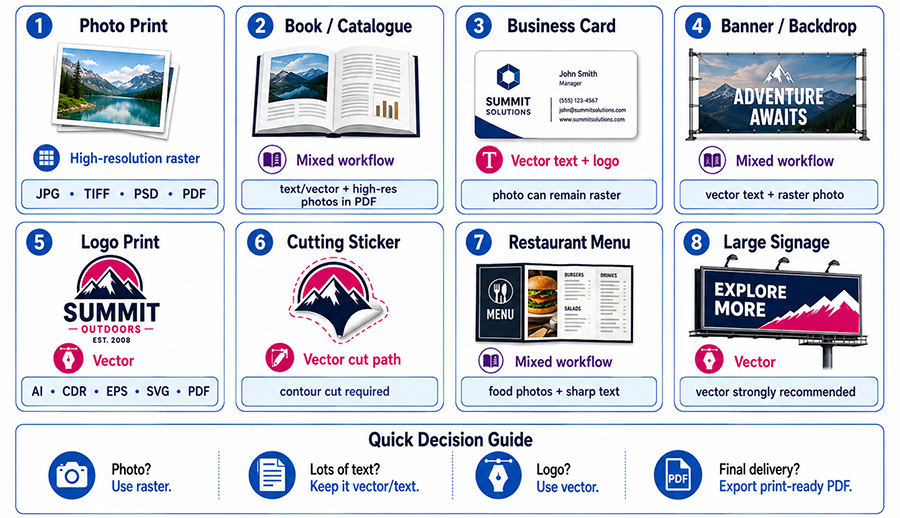
Banners and event backdrops often use a combination of raster and vector content.
For example:
- Photographic background = raster.
- Logo = vector.
- Text = vector.
- Shapes and icons = vector.
This mixed structure is usually preferable to converting the entire design into one low-resolution JPG.
28. File Types for Large Signage
For signage containing text, logos, and graphic shapes, keeping these elements as vector is extremely useful.
Imagine lettering that will eventually be printed several meters wide.
A small screenshot of that text will behave very differently from the original vector artwork when enlarged.
29. File Types for Business Cards
Business cards usually contain many small elements, such as:
- Name.
- Job title.
- Phone number.
- Email address.
- Website.
- Logo.
- QR Code.
For this reason, it is best to keep text and logos in vector form.
If the business card includes a photograph, that image can remain as a high-resolution raster image inside the PDF.
30. File Types for Restaurant Menus
Restaurant menus commonly contain both food photography and large amounts of text.
A practical structure is:
- Food photography = high-resolution raster.
- Menu names = text/vector.
- Prices = text/vector.
- Logo = vector.
- Icons = vector whenever available.
Avoid turning the entire menu into a screenshot or low-resolution JPG.
31. File Types for Posters
Posters can use a combination of raster and vector graphics.
If the poster is dominated by photography, raster content will naturally be an important part of the design.
However, headlines, logos, prices, dates, and event information should ideally remain as text or vector whenever the workflow allows.
32. File Types for Photography
For photography, vector is not the primary format because photographs are naturally raster images.
Important considerations include:
- Sufficient resolution.
- Avoiding screenshots.
- Avoiding excessive compression.
- Using an image large enough for the intended print size.
- Using an appropriate color profile.
33. When Is JPG Still a Good Choice?
JPG remains a very useful format.
A high-quality JPG can be suitable for:
- Photography.
- Photo printing.
- Background images.
- Certain large-format printing jobs.
- Artwork that is intentionally fully raster-based.
The problem is not that JPG is always bad. Problems occur when JPG is used where vector would provide an advantage, or when the image resolution is too low for the required print size.

34. Why Is PDF Commonly Recommended for Printing?
PDF offers several important advantages in print production.
A PDF can contain:
- Vector graphics.
- Raster images.
- Text.
- Font information.
- Bleed.
- Crop marks.
- Color profiles.
- Multiple pages.
For this reason, PDF is one of the most flexible formats for sending final production files to a printing company.
35. A PDF Can Still Be Low Quality
The PDF extension alone does not guarantee high quality.
If a PDF is created from a low-resolution JPG, the content inside the PDF will still be low resolution.
If an entire page was already rasterized before being exported, saving it as PDF does not convert it back into vector artwork.
In simple terms:
PDF is a container. Its quality depends on the content and export settings inside it.
36. Avoid Converting Files Repeatedly
A workflow such as the following should be avoided whenever possible:
AI → JPG → Messaging App → Screenshot → PDF
Each conversion may remove information or reduce image quality.
If the original master artwork is available, always return to that original file whenever possible.
37. Messaging Applications May Reduce Image Quality
Images sent through some communication applications may be compressed when they are sent as regular photographs.
As a result, a large high-quality original image may arrive at the printing company as a smaller compressed version.
For printing artwork, use a transfer method that preserves the original file whenever possible.
38. Do Not Judge Resolution Only by File Size in MB
A 20 MB file is not automatically sharper than a 5 MB file.
File size depends on many factors, including:
- Compression.
- Number of layers.
- File format.
- Metadata.
- Pixel dimensions.
- Image complexity.
To evaluate raster artwork properly, check its pixel dimensions and intended final print size.
39. Placing a Low-Resolution Logo Inside a Vector File Does Not Make It Vector
Placing a low-resolution JPG logo into Adobe Illustrator or CorelDRAW does not automatically convert the logo into vector artwork.
The document may come from vector software, but the embedded or linked image can still be raster.
This distinction is extremely important when preparing production artwork.
40. Image Trace Does Not Always Create Perfect Vector Artwork
Vector applications can automatically trace raster images and convert them into vector paths.
However, automatic tracing is not always equivalent to having the original vector artwork.
For simple logos, tracing may work reasonably well.
For detailed logos, typography, gradients, or complex shapes, automatic tracing may produce:
- Uneven curves.
- Changed shapes.
- Lost details.
- Too many unnecessary anchor points.
- Letters that no longer match the original logo.
Whenever possible, request the original vector logo.
41. Should Text Always Be Converted to Outlines?
Not always.
Converting fonts to outlines can help prevent missing-font problems in some workflows.
However, converting all body text in a long multi-page document to outlines can make the file more complex and removes its editable text structure.
A properly prepared PDF with embedded fonts may be a better solution for many document workflows.
Ask your printing provider whether they require:
- Embedded fonts.
- Text converted to outlines.
- Native files with the fonts supplied separately.
42. Recommended File Structure by Product Type
| Print Product | Main Content | Recommended Format / Structure |
|---|---|---|
| Photo Print | Photography | High-resolution raster such as TIFF/JPEG or high-quality PDF |
| Book | Large amount of text + images | PDF with sharp text/vector content and high-resolution raster photos |
| Business Card | Small text + logo | PDF/vector, with raster photography if required |
| Logo Printing | Logo | AI, CDR, EPS, SVG or vector PDF |
| Banner | Text + photography + logo | PDF combining raster and vector elements |
| Backdrop | Photography + branding + text | PDF/vector layout with appropriately sized raster images |
| Cutting Sticker | Cut path + logo | Vector artwork with contour/cutting path |
| Menu | Photography + large amount of text | PDF with raster photos and vector/text content |
| Packaging | Dieline + logo + text + images | Vector/PDF with dieline and high-quality images |
| Signage | Large text and logos | Vector strongly recommended |
43. Native Files vs Final Production Files
A native file is the original working file created by the design software.
Examples include:
- .PSD from Photoshop.
- .AI from Illustrator.
- .CDR from CorelDRAW.
The advantage of a native file is that the printing company may still be able to make adjustments if necessary.
However, native files can also create compatibility issues, such as:
- Missing fonts.
- Missing linked images.
- Different software versions.
- Effects rendering differently.
For final production, a properly prepared print-ready PDF is often a safer and more predictable option.
44. Pre-Print File Checklist
Before sending artwork to a printing company, check the following:
- Make sure the document size matches the final product size.
- Add bleed when required.
- Check the safe area.
- Use the color mode requested by the printer.
- Make sure photographs have sufficient resolution.
- Use vector logos whenever available.
- Do not use screenshots for important logos or text.
- Keep text as text/vector whenever possible.
- Check whether fonts are embedded or prepared according to production requirements.
- Check all linked images.
- Avoid excessive raster enlargement.
- Do not assume every PDF is automatically high quality.
- Use high-quality export settings.
- Ask the printing company for specifications when special finishing is required.
45. Main Principle: Match the File Type to the Artwork
There is no single file format that is best for every printing job.
A better principle is:
Use raster for elements that naturally require raster, and preserve vector for elements that benefit from vector.
For example:
- Photography → Raster.
- Logo → Vector.
- Body text → Text/Vector.
- Icons → Vector.
- Vector illustration → Vector.
- Photographic textures → Raster.
- Cutting lines → Vector.
Conclusion
Choosing the correct file type is an essential part of preparing artwork for professional printing.
Adobe Photoshop is highly suitable for photography and image editing because it is primarily raster- or pixel-based.
Adobe Illustrator and CorelDRAW are better suited to artwork that benefits from vector graphics, including logos, typography, shapes, signage, cutting paths, and graphic elements that need to remain sharp at different sizes.
Online applications such as Canva can be used successfully for many design projects, but final print quality still depends on the quality of the source assets and the export settings used.
For products that combine photography with large amounts of text, such as books, catalogues, company profiles, or menus, the best approach is usually not to flatten every page into a single JPG.
Photographs should remain as high-quality raster images, while text, logos, lines, and graphic elements should remain as text or vector wherever possible.
PDF is particularly useful because it can contain raster images, vector artwork, and text in a single file. However, a PDF is only as good as the content and export settings used to create it.
The correct file structure allows the printing equipment to reproduce as much detail as the production process can support. A file that has already lost detail before printing cannot be fully restored simply by using a high-resolution printer.
For the best results, always prepare artwork according to the type of product, final print size, viewing distance, design characteristics, and production method rather than choosing a file type based only on the software used to create the design.